Welcome to AZ Service — the AI-powered home services marketplace for Australia. Here's everything you need to know to get your first job done.
1
Create a Free Account
Click Login at the top right then Register. Fill in your name, email and a secure password. You'll receive a verification email — click the link to activate your account.
2
Complete Your Profile
Add your address, suburb and contact number. This helps providers give you accurate quotes and ensures bookings are matched to the right area.
3
Search for a Service
Use the homepage AI search or browse 250+ categories. Type in plain English — e.g. "I need my grass mowed this weekend" — and our AI will find the right match.
4
Book & Pay Securely
Select your provider, choose a time slot, and pay through the platform. Your payment is held securely until the job is done.
AZ Service is completely free for customers. No booking fees, no hidden charges.
For Customers
How to Browse & Book a Service
Finding and booking the right provider takes just a few minutes.
Browsing Categories
Navigate to Services in the top menu. You'll see all 250+ service categories grouped by type — Plumbing, Electrical, Cleaning, Landscaping, Renovation and more. Click any category to see verified providers and their services in your area.
Filtering Results
Use the filter bar to narrow results by:
Rating — Show only 4★ and above
Verified — Providers who've earned our Verified badge (see the Find Providers page for the Verified Only filter)
Availability — Providers available on your preferred date
Price range — Set a min/max budget
Booking a Service
1
Click on a provider's profile to view their full details, reviews and pricing.
2
Click Book Now and choose your preferred date and time from their availability calendar.
3
Add any notes about the job (e.g. "large backyard, needs edge trimming too") and confirm the booking.
4
Enter your payment details. Your card is charged but funds are held in escrow until the job is marked complete.
Cancel more than 24 hours before the scheduled time and your deposit is refunded to your AZ Service wallet. See our Refund & Cancellation Policy for full details.
For Customers
Using AI Smart Search
Our AI understands plain English — just describe your problem and it will find the right service for you.
How it works
Type a natural description of what you need in the homepage search bar. For example:
"My hot water system is leaking" → Plumbing
"Need someone to paint my living room" → Painting
"Backyard overgrown and messy" → Gardening & Landscaping
"Lights flickering in my kitchen" → Electrical
The AI analyses your description and redirects you directly to the correct service category and matching providers — no browsing required.
Tip: The more detail you give, the better the match. Mention the room, type of property, or urgency — e.g. "emergency hot water" vs "routine service".
For Customers
How to Post a Job
Instead of booking directly, you can post a job and let providers bid for it. Great for larger or more complex projects.
1
Click Post a Job from the navigation menu or homepage.
2
Select the service category and describe the job in detail. Include size, location, timeline and any special requirements.
3
Set your budget range (optional) and preferred start date.
4
Providers will respond with quotes. Review each bid, compare provider ratings, and accept the best offer.
5
Once you accept a bid, payment is confirmed and the job is scheduled.
For Customers
Payments & Refunds
Your money is always protected. We use secure escrow payments so you only pay when you're satisfied.
How Payments Work
Payment is collected when you confirm a booking
Funds are held in secure escrow — the provider cannot access them yet
Once you confirm the job is complete, payment is released to the provider
If you don't mark it complete within 48 hours of the scheduled end time, payment releases automatically
Refund Policy
Cancelled more than 24h before the job: deposit refunded under the Refund & Cancellation Policy; AZ Service does not deduct a customer card-handling fee
Cancelled within 24h of the job: the deposit may be retained as a cancellation fee
Dispute after job: Contact support within 48 hours for review
For disputes, email info@azservice.com.au with your booking reference. Our team responds within 4 business hours.
For Customers
Reviews & Ratings
Honest reviews keep the marketplace trustworthy — and help great providers grow.
Leaving a review
1
Once your booking is marked complete, open it from your Bookings list.
2
Choose a star rating (1–5) and write a short description of your experience — punctuality, quality, communication.
3
Submit. Your review appears on the provider's public profile as a verified review, because it's tied to a real completed booking.
Review guidelines
Be specific and factual — describe what was done and how it went
Keep it respectful; abusive content is removed under our content policy
Reviews can't be edited by providers, so what you write is what future customers see
For Providers
Register as a Provider
Joining AZ Service as a provider is free and takes less than 10 minutes.
1
Click Register as Provider from the Providers page or click here.
2
Fill in your personal details: full name, email, username, and password.
3
Add your business information: trade type, service area, years of experience.
4
Upload a profile photo and a brief bio describing your skills.
5
Submit your application. Our team will review and activate your account within 24 hours.
For Providers
Getting Your Verified Badge
A verified badge builds trust and significantly increases your booking rate.
What you need to submit
Public liability insurance certificate
Relevant trade licence(s), qualifications or certifications
ABN if applicable
Other business compliance documents where applicable
Verification process
Upload your documents via Dashboard → Documents. Our team will review them within 24 hours and email you once verified. Your profile will then show the blue verified checkmark.
Verified providers receive 3× more bookings on average than unverified profiles.
For Providers
Managing Your Bookings
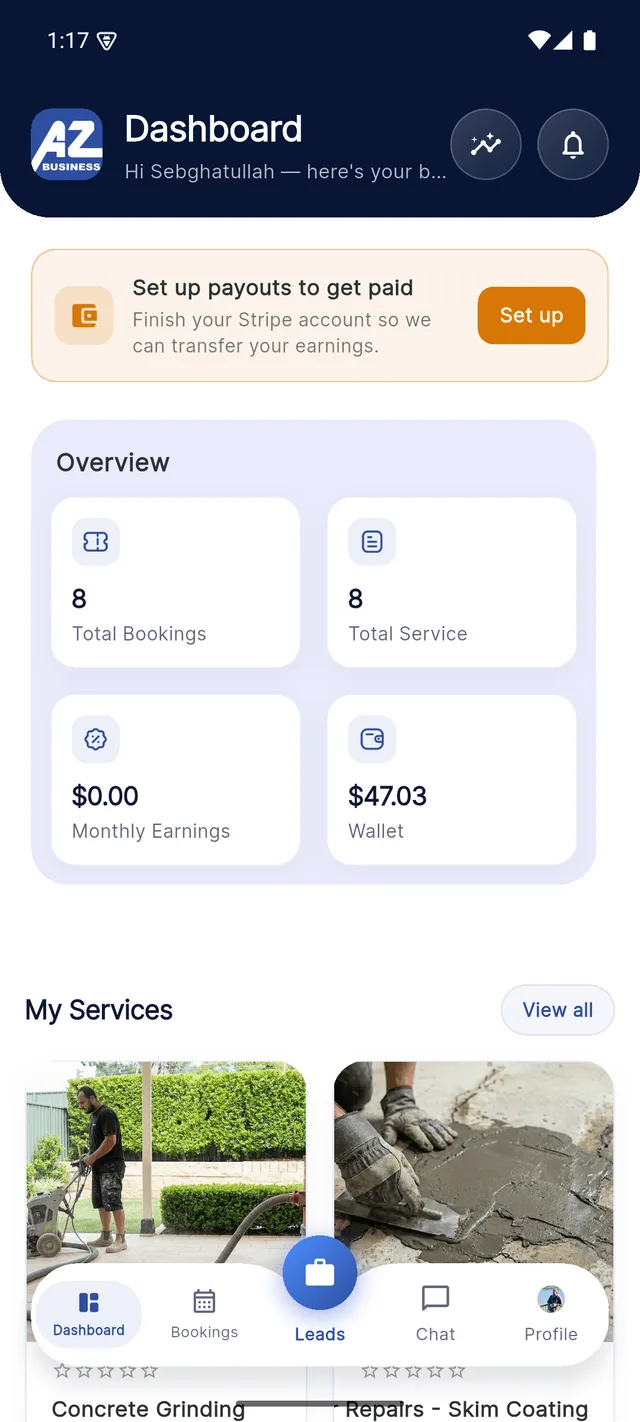
Everything booking-related lives in the Bookings tab of your dashboard and the AZ Business app.
1
New requests — when a customer books you, the booking appears as Pending. Accept or decline it; there's no obligation to accept every job.
2
On the day — open the booking to see the address, notes and contact-safe chat. Mark the job In Progress when you start and Complete when you finish.
3
Extras & staff — add extra charges the customer approves in-app, or assign the job to one of your staff from the booking detail screen.
4
Completion — once the customer confirms (or 48 hours pass without a dispute), your share is released for payout.
The AZ Business app dashboard — bookings, services and earnings at a glance.
For Providers
Job Leads & Bidding
Customers post jobs describing what they need — you bid on the ones that suit you. Leads are free to view and bid on.
1
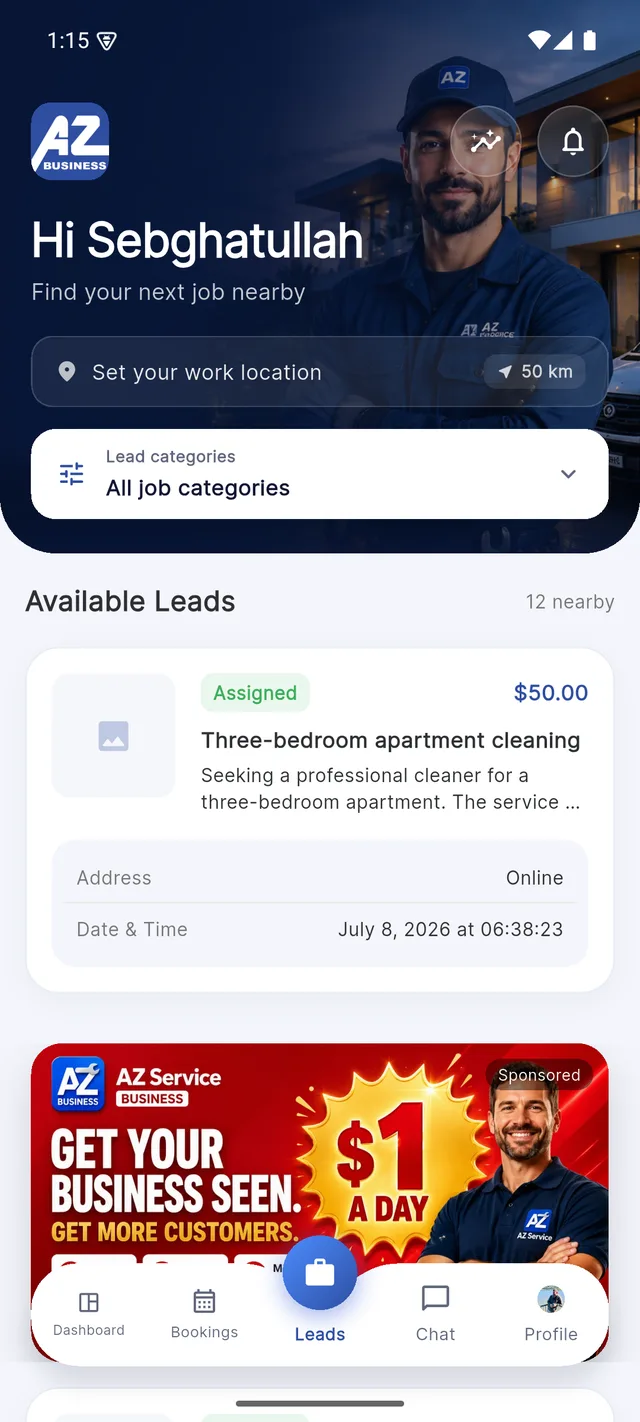
Open the Leads tab (the centre button in the AZ Business app, or Job Leads in the web dashboard).
2
Set your work location and radius so you only see jobs you can actually reach, and filter by your trade categories.
3
Open a lead to read the full description, location and preferred dates, then submit your bid price.
4
If the customer accepts your bid, it becomes a booking and you can chat with them in-app to arrange details.
The Leads tab — nearby customer jobs you can bid on, filtered by your work location.
Tip: Bids with a short personal note and a realistic price win far more often than bare numbers. Mention relevant experience.
For Providers
Quotes & Invoices
Build professional line-item quotes in the AZ Business app, send them to customers, and convert accepted quotes into invoices.
1
Open Profile → Quotes & Invoices in the AZ Business app.
2
Create a quote: add line items with descriptions and amounts. GST is applied automatically based on your verified ABN and tax registration status.
3
Send the quote — the customer can view it as a PDF. Track its status (draft, sent, viewed) from the Quotes tab.
4
When a quote is approved it can be converted to an invoice. Registered providers receive the market-appropriate GST treatment; others issue a standard invoice.
Verify your ABN under Profile → GST first — verification status drives how your invoices are issued.
For Providers
Getting Paid
Payouts run through Stripe — set it up once and your earnings land in your nominated bank account automatically.
1
Set up payouts — tap the "Set up payouts" banner on your dashboard (or Earnings in the web panel) and complete Stripe's identity and bank details onboarding.
2
Job completes — when a booking is confirmed complete, your share (after the service fee — 5% in your first 3 months, then 10%) is credited to your balance.
3
Friday payouts — accumulated earnings are paid out to your bank every Friday. Track everything under Wallet History and Earnings.
There are no upfront costs — the service fee only applies to jobs you've actually been paid for.
For Providers
Subscription Plans — Pro & Premium
Upgrade your account to unlock powerful growth features.
Pro — $29/month
Featured listing on the AZ Service homepage
Priority placement in search results
AI social media content creator (Instagram, Facebook)
Advanced analytics dashboard
Premium — $59/month
Everything in Pro
Dedicated account manager
More AI content credits
Top placement in category pages
Promotional badge on profile
To subscribe, go to My Subscription in your provider dashboard. You can cancel anytime from there — your plan stays active until the end of the billing period.
For Providers
AI Social Media Content Tools
Available on Pro and Premium plans — generate professional social media posts in seconds.
How to use the AI content creator
1
Go to Dashboard → AI Content from your provider account.
2
Choose a platform: Instagram or Facebook.
3
Describe your service or a recent job — e.g. "Installed new bathroom tiles for a client in Melbourne".
4
The AI generates a professional caption with relevant hashtags. Copy and post it directly to your social media.
Tip: Post consistently — providers who post 3× per week on social media see a 40% increase in profile views.
For Providers
Mobile Apps & the Guided Tour
AZ Service (for customers) and AZ Business (for providers) are on both the App Store and Google Play. Both apps include a built-in Help Centre and a guided tour.
Built-in help, search and AI assistant
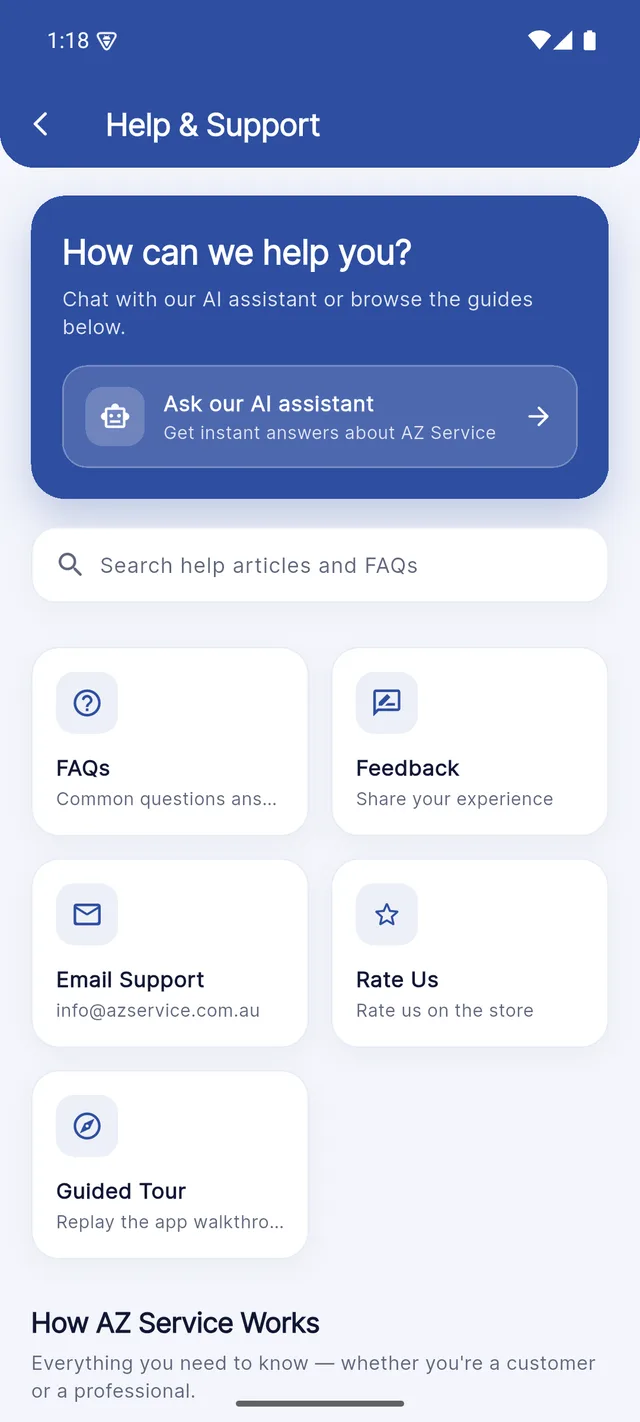
In either app, open Profile → Help and Support. You can search all help articles and FAQs as you type, browse "How AZ Service Works", or ask the AI assistant — the same assistant as this website.
The in-app Help & Support centre — AI assistant, search, FAQs and guides.
The guided tour
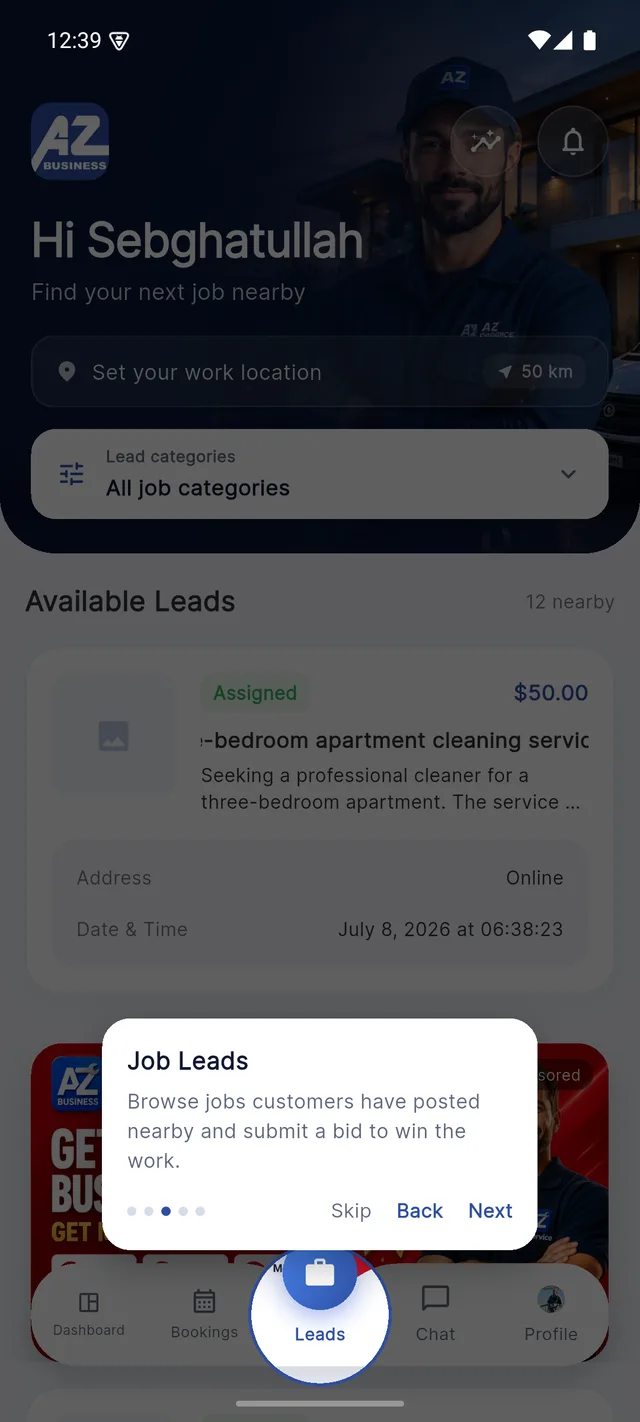
On your first launch the app walks you through each tab — Dashboard, Bookings, Leads, Chat and Profile — with short explanations. You can replay it any time from Help and Support → Guided Tour.
The guided tour spotlights each tab and explains what it does.